
Overview
Complete Gateway has released a new update that changes how user visibility is managed across the platform.
Prior to this update, all users shared a standard view regardless of their role. Now, any user without Masters access will have restricted visibility by default. This means they will only see the areas of the platform that an admin has explicitly enabled for them. As a default, they have zero visibility.
This gives the Master Accounts greater control over the user experience, making it easy to tailor each account to fit a specific role. A billing user, for example, may only need access to invoicing, while a reconciliation agent requires an entirely different set of views.
To edit visibility, follow the steps below:
How to Update User Visibility
1. Log In to the Masters Account
Sign in using your Masters account credentials. Only Masters accounts can manage user visibility settings.
2. Navigate to User Settings
Go to Settings → Users to view all existing accounts.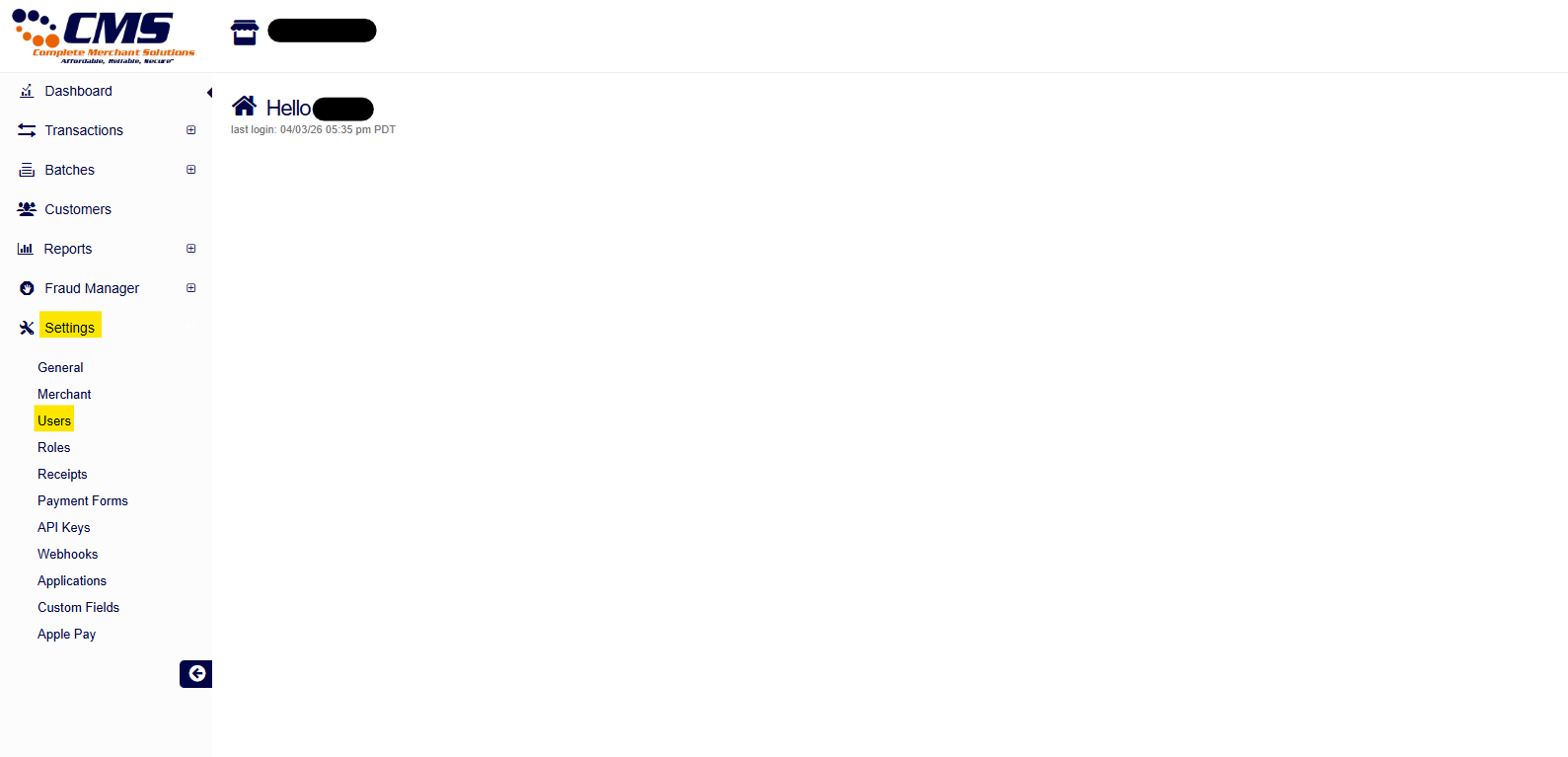
3. Select the User
Click the username you'd like to update.
4. Open Console Permissions
Select the Console Permissions tab within the user's profile.
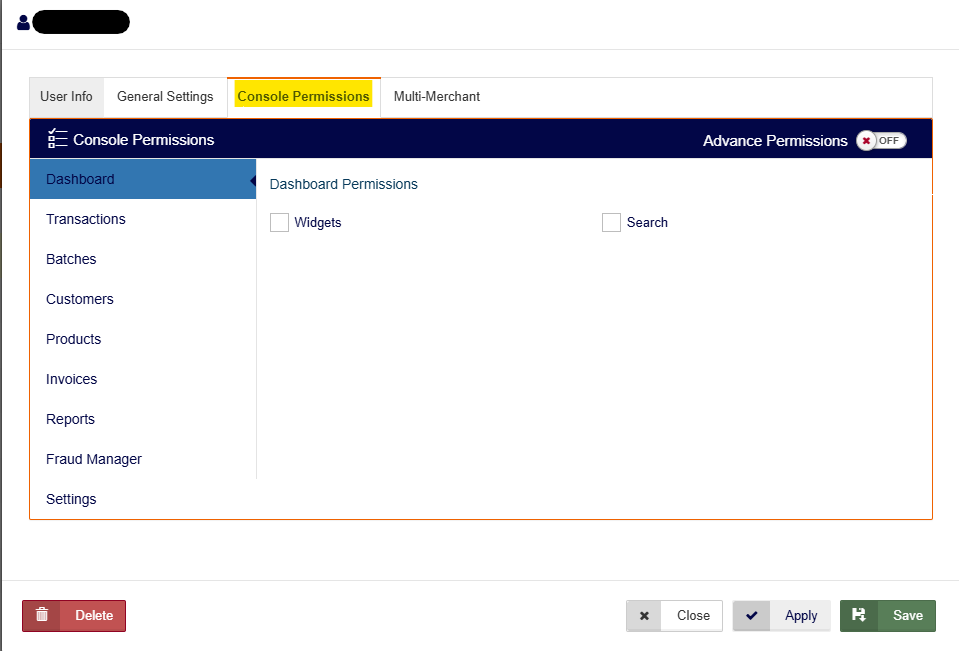
5. Configure Visibility
Toggle each option in the left-hand column on or off based on the user's role, giving them access to what they need and nothing more.
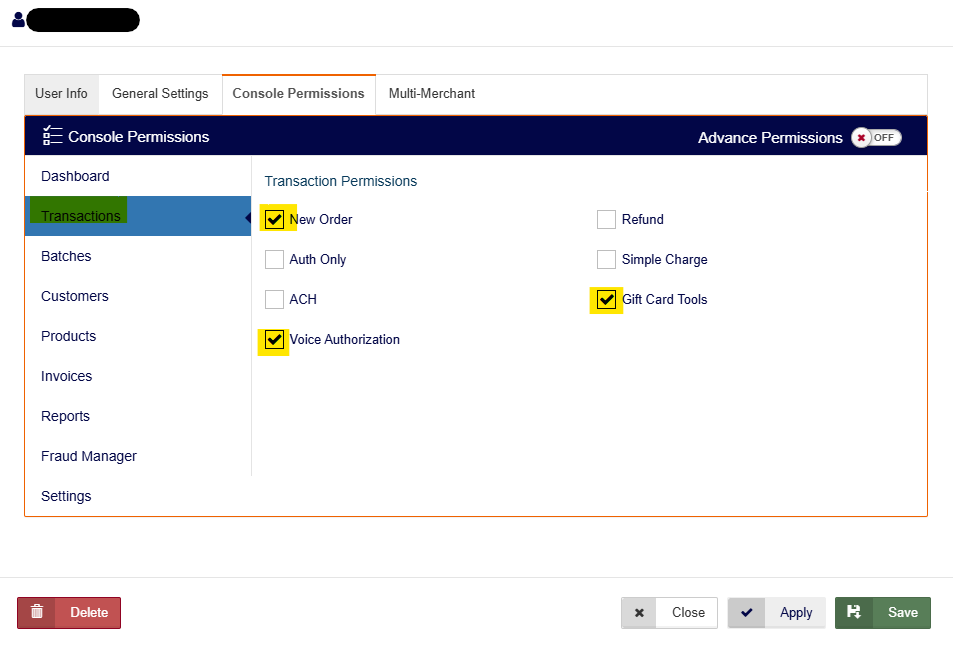
6. Save and Refresh
Click Save, then have the user log out and back in to apply the changes.